How To Download Music On Your Iphone A Detailed Guide With Applications
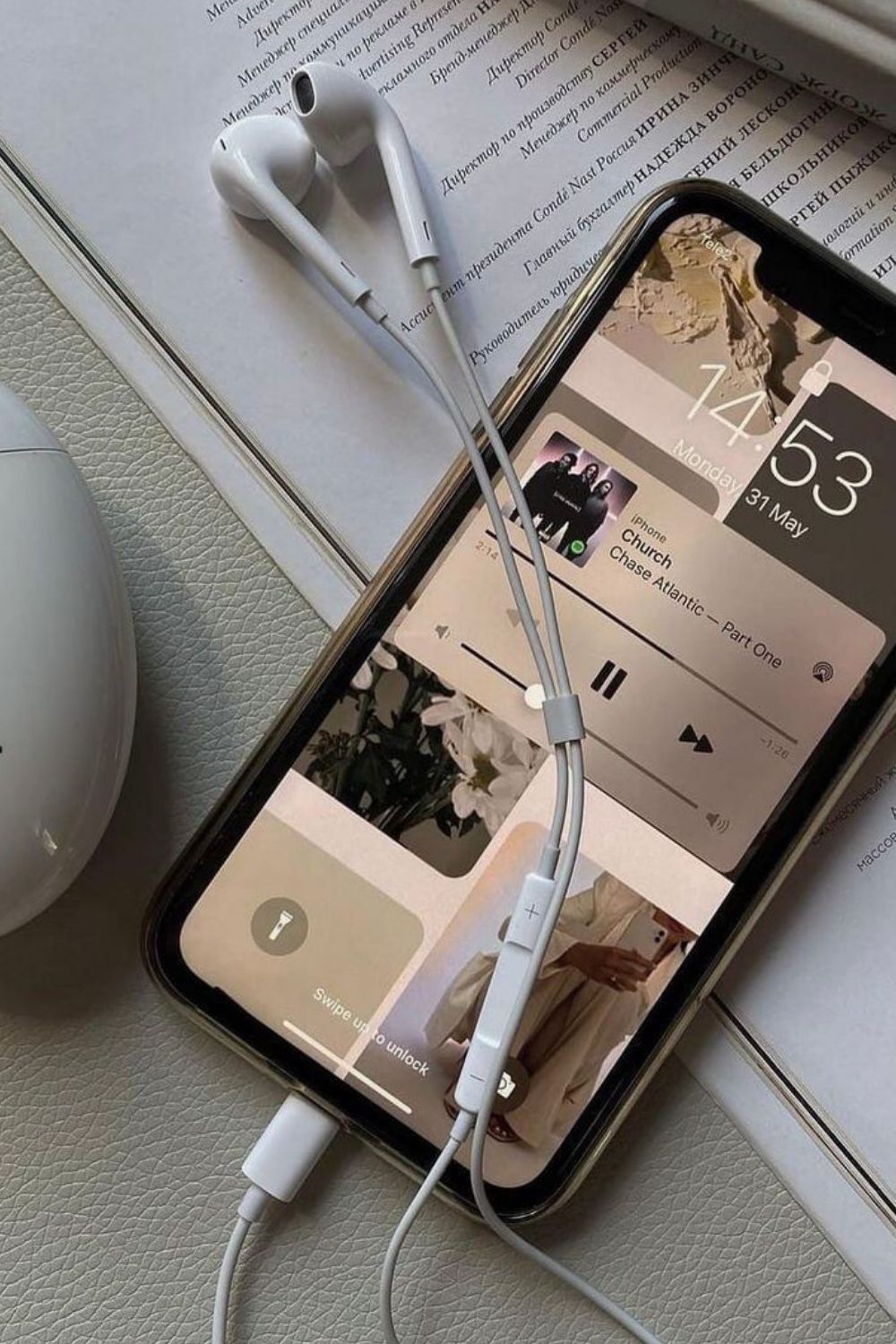
In today’s digital world, streaming music has become incredibly popular, but there are times when having offline access to your favorite songs is essential. Whether you’re traveling without an internet connection, want to save on data usage, or just prefer having a personalized playlist ready to go, downloading music on your iPhone is a great solution.
Fortunately, there are several ways to download music to your iPhone, whether you prefer using Apple’s built-in apps, third-party music services, or even transferring music from your computer. In this article, we’ll take a detailed look at how you can download music on your iPhone using various methods and apps.
1. Using Apple Music to Download Music
Apple Music is a subscription-based service that offers a vast library of over 70 million songs. If you're already a subscriber to Apple Music, you can easily download music directly to your iPhone.
Steps to Download Music from Apple Music:
-
Open the Apple Music App
Launch the Apple Music app on your iPhone.
-
Search for Songs, Albums, or Playlists
Use the search bar to find the music you want to download. You can search for specific songs, albums, or playlists.
-
Add to Library
Once you find the song or album you want to download, tap the "+" button to add it to your library.
-
Download the Music
After the music is added to your library, you’ll see a cloud icon with an arrow next to the song or album. Tap the cloud icon to begin the download process.
-
Access Your Downloaded Music
To access your downloaded music, go to the Library tab in the Apple Music app, and then select Downloaded Music. You’ll find all the songs and albums you've downloaded for offline listening.
Advantages of Using Apple Music:
- Vast music library with millions of songs.
- Seamless integration with your iPhone and other Apple devices.
- Ability to create and sync personalized playlists.
2. Downloading Music from iTunes Store
The iTunes Store is another great option for purchasing and downloading music directly to your iPhone. Unlike Apple Music, which is subscription-based, the iTunes Store allows you to buy individual songs or albums.
Steps to Download Music from iTunes Store:
-
Open the iTunes Store App
Find and open the iTunes Store app on your iPhone.
-
Search for Music
Use the search bar at the top of the app to find the music you want to purchase.
-
Purchase and Download
Once you’ve found your desired music, tap the price button to purchase the song or album. After purchasing, the song or album will automatically download to your device.
-
Access Your Purchased Music
After the music has been downloaded, go to the Music app on your iPhone. The purchased tracks will appear under your Library, and you can listen to them offline.
Advantages of Using iTunes Store:
- Pay per song or album without a subscription.
- No need for an internet connection once music is downloaded.
- Offers a wide selection of high-quality music.
3. Using Third-Party Music Apps to Download Music
In addition to Apple Music and iTunes, several third-party apps allow you to download music on your iPhone. Some of these apps work similarly to streaming services, while others allow you to store music directly from your computer.
Popular Third-Party Music Apps:
Spotify (Premium)
Spotify’s Premium plan allows users to download music for offline listening.
Steps to Download Music on Spotify (Premium):
-
Open the Spotify App
Launch the Spotify app on your iPhone.
-
Search and Add Music
Search for the album, playlist, or song you want to download. Once you find it, add it to a playlist.
-
Download the Playlist or Album
After adding music to your playlist, toggle the Download button (a downward arrow) to begin downloading the music for offline use.
-
Listen Offline
Once downloaded, the music can be accessed under Your Library, and you can enjoy it without an internet connection.
Other Third-Party Apps:
-
Amazon Music: Amazon Music allows Amazon Prime members to download music for offline listening, with a large selection of
free and premium music.
-
YouTube Music (Premium): With YouTube Music Premium, you can download playlists and albums for offline listening.
Advantages of Using Third-Party Apps:
- Multiple options for offline music.
- Some apps offer free or ad-supported versions, though downloading requires a subscription.
- Integration with existing accounts for seamless music access.
4. Transferring Music from Your Computer to Your iPhone
If you have music stored on your computer and you want to listen to it on your iPhone, you can transfer it via iTunes or Finder (on macOS Catalina and later).
Steps to Transfer Music via iTunes (for Windows and macOS Mojave or earlier):
-
Connect Your iPhone to Your Computer
Use a USB cable to connect your iPhone to your computer.
-
Open iTunes
Launch iTunes on your computer.
-
Sync Your Music
In iTunes, select your iPhone from the device list, then go to the Music tab. Check the box to sync your music, and select which music you want to transfer. Click Apply to start syncing.
-
Listen to Music on Your iPhone
Once the sync is complete, you can access your music in the Music app on your iPhone.
Steps to Transfer Music via Finder (for macOS Catalina and later):
-
Connect Your iPhone to Your Mac
Use a USB cable to connect your iPhone to your Mac.
-
Open Finder
In Finder, select your iPhone from the sidebar.
-
Drag and Drop Music
Locate the music files you want to transfer on your computer, and drag them into the Finder window with your iPhone. Select Sync to transfer the files to your device.
-
Access Your Music
After syncing, your music will be available in the Music app on your iPhone.
Advantages of Transferring Music from Your Computer:
- No need for a subscription service.
- You can download any music you own, including music from CDs or purchased from other services.
- Completely offline, with no need for data or Wi-Fi.
5. Using Music Download Websites and Apps (With Caution)
There are a variety of websites and third-party apps that claim to allow you to download music directly to your iPhone. However, it's important to be cautious when using these services, as they may involve illegal downloads or harmful malware. Always make sure you are using a reputable service, and consider the legality of downloading music without compensating the artist or service.
Legal Alternatives:
-
SoundCloud: Offers both free and premium music with the ability to download tracks directly from the app, provided the
artist has enabled downloads.
- Bandcamp: Allows you to purchase and download music directly from independent artists.
Note: Always ensure that you have the proper rights to download music to avoid violating copyright laws.
The Best Way to Download Music on Your iPhone
Downloading music to your iPhone has never been easier, thanks to the wide array of services available. Whether you’re using Apple Music for a subscription-based solution, the iTunes Store for individual purchases, or a third-party app like Spotify or Amazon Music, you can easily have your favorite tracks available offline. If you prefer a more personal touch, transferring music from your computer gives you full control over your library.
No matter your method, it’s important to choose a solution that fits your preferences and lifestyle, whether you’re an avid music streamer or someone who prefers to curate a personal collection. By following these steps, you’ll have your music downloaded and ready to enjoy anytime, anywhere.
Shopping or spending abroad? Check out the GiftTree Brand